March 16, 2026
 If you have reached here, you already know the value of keyword research and how to leverage it to boost your online presence.
You are most likely looking for easy-to-understand steps to conduct keyword research on SEMrush.
The fact is, it is not immediately obvious where to begin or which reports to check on Semrush.
This step-by-step guide will help to clear any confusion you may have and help you find high-potential keywords for your website and ultimately boost your SEO performance significantly.
If you are looking for a good SEO guide, you can check out Search Engine Optimization (SEO): The Complete Guide to Ranking, Traffic & Growth in 2026.
Now, before getting into the steps involved in conducting keyword research, let’s find out what keyword research essentially is.
What is Keyword Research?
Keyword research is the method of pinpointing the words and phrases people type into search engines.
It helps you understand what people want to know and which topics your website should create content about.
By studying these searches, you can choose keywords that have real demand and a better chance of bringing visitors to your site.
Find what people are searching for online
See which topics get the most searches
Choose keywords your site can rank for
According to American Marketing Association, 70% of all clicks go to the first five organic results. And if you expect to be among those, keyword research is the foundation.
How To Use Semrush For Keyword Research- A Step-By-Step Guide
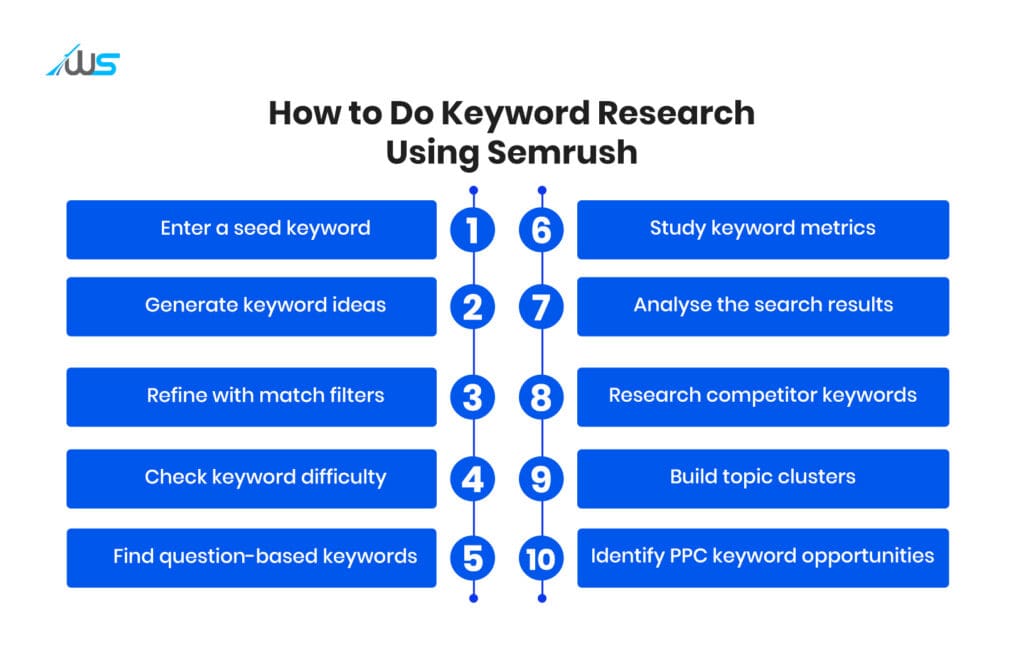
Once you have created an account on SEMrush account and have logged in, you will see a list of options. On the left side menu go to the Keyword Magic Tool and proceed as follows.
Step 1. Choose Organic Keywords
1.1 Work with the Keyword Magic Tool
1. Enter a keyword
In the field indicated below, enter a broad keyword (also called a seed keyword) connected to your domain.
So, if you run a women’s accessories online store, you may use terms like ‘Fashion Accessories’ or ‘Women’s Fashion’ and other similar terms.
2. Click Search.
Pick the country that you are targeting from the dropdown. It will be on a default country, so you have to select it specifically.
1.2 Fine-tune the Keywords
Now you get the option of refining your search, taking into account certain parameters. The aim here is to increase control and relevance while reducing irrelevant traffic.
Let’s take the previous example of the seed keyword ‘women’s accessories’.
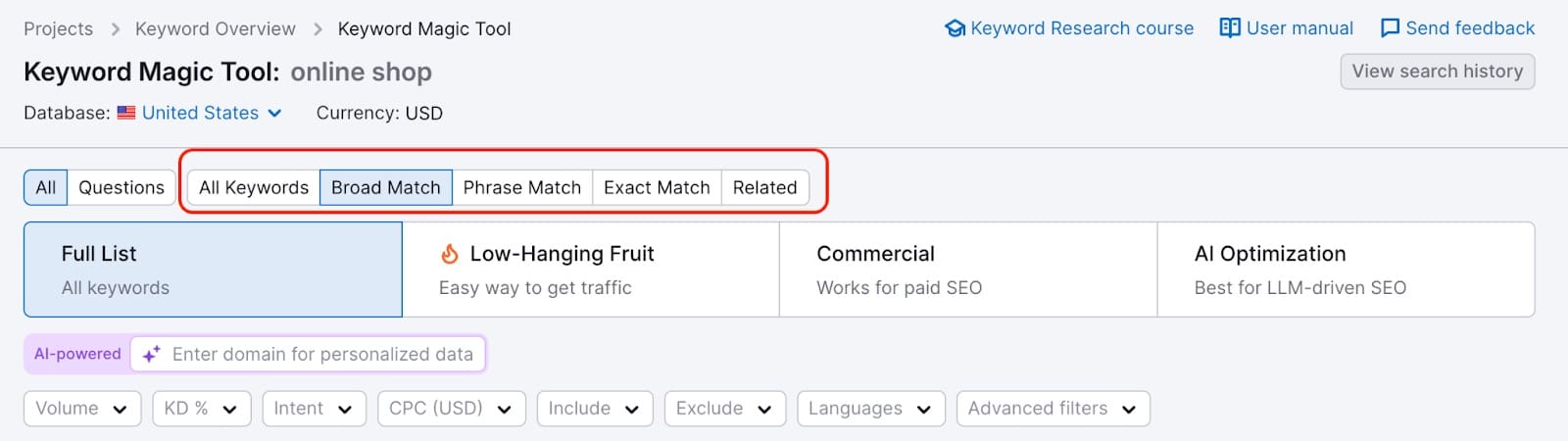
Figure 1: Keyword Magic Tool match type filters (Broad, Phrase, Exact and Related).
Broad Match – This would be variations of the seed keyword in any order.
Example: ladies hats, buy bags, cute fashion accessories
Phrase Match – Here the terms would include the exact keyword. But, may include words before or after it.
Example: best women’s accessories, luxury women’s accessories online
Exact Match – The exact keyword or terms containing it in the same order are found. Since it has the highest relevance, it results in higher conversion rates.
Example: womens accessories, accessories for women
Related – It includes terms that are contextually linked to the main keyword, like synonyms or words related to the keyword.
Example: fashion jewelry, designer handbags, ladies’ belts, hair bands, silk scarves.
1.3 Find Low-Competition Keywords
You need to find keywords with low difficulty, and these often are long-tail search terms. The good thing about these keywords is that fewer, or less authoritative, websites are using them, so there’s a higher possibility to rank on SERPs (Search Engine Results Pages).
1. Use the KD % (keyword difficulty) filter
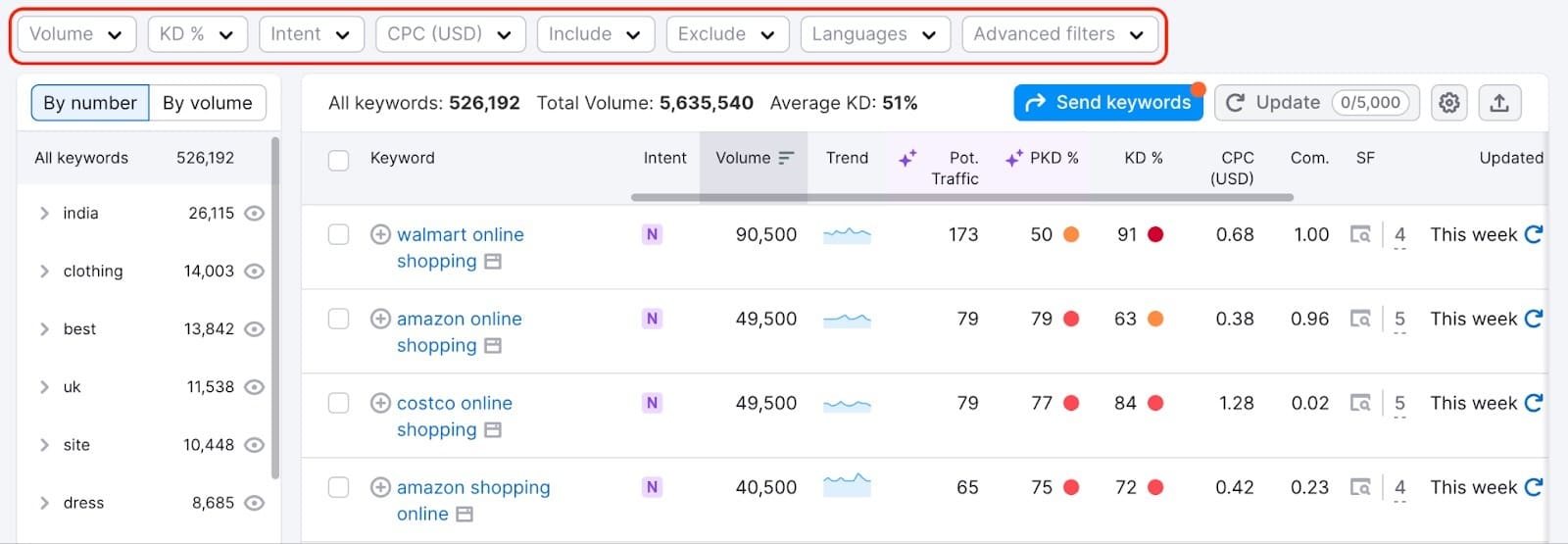 Figure 2: Using KD % filter and other options to identify low-competition keywords.
The KD filter needs to be at the minimum difficulty level in order to find all the low-competition keywords.
2. Keywords for new websites
New or relatively unknown sites should pick keywords with decent search volume but the lowest difficulty scores.
3. Keywords for established websites
You can set the KD from medium to hard if your website is well established, since in this case, you can afford to target competitive keywords and gain higher search volume.
1.4 Decide on Common Question Keywords
1. Use the Questions button within the Keyword Magic Tool menu.
 Figure 3: Finding question-based keywords using the Questions filter.
Use the ‘Question’ filter to find question-based key phrases (e.g., “how to,” “what is,” “where”) and long-tail keywords. It helps you with content planning as it reveals user intent (what users actively search for).
Did you know: About 8% of search queries are written as questions, often starting with words such as who, what, where, why, or how.
2. Identify question-based keywords containing your seed term.
Pick questions or user queries with your seed keyword/phrase, like ‘What are the essential accessories every woman needs?’ or ‘Where to buy affordable accessories for women?’
1.5 Analyse and Choose Terms (Keyword Overview Tool)
Go to the tool menu and choose the Keyword Overview tool. Here you can tweak and improve the keywords you are already considering. To do this:
Enter a term in the search bar, such as ‘womens fashion’
Select your location, which means the location you are targeting for your products and/or services.
Optionally, you can also enter your domain in the AI-powered feature bar.
Click Search.
1.6 Go through the Keyword Metrics
You will get a report with detailed information (metrics) of the keyword you are planning to use. Check these metrics to refine your keyword.
Search intent – reason users search for the keyword.
Keyword variations – other closely related search phrases for the term.
Traffic potential – estimated visits if the page ranks well.
Paid competition level – how competitive the keyword is in ads.
Cost per click – average amount advertisers pay per ad click.
Topical relevance – how closely the keyword matches your domain.
Monthly search volume – estimated searches for the keyword monthly.
Ranking difficulty – how hard your site may rank top results.
Search trend – whether interest in the keyword rises or falls.
Estimated ranking position – predicted position your page may achieve.
 Figure 4: Keyword Overview report showing metrics such as volume, intent, difficulty, and more.
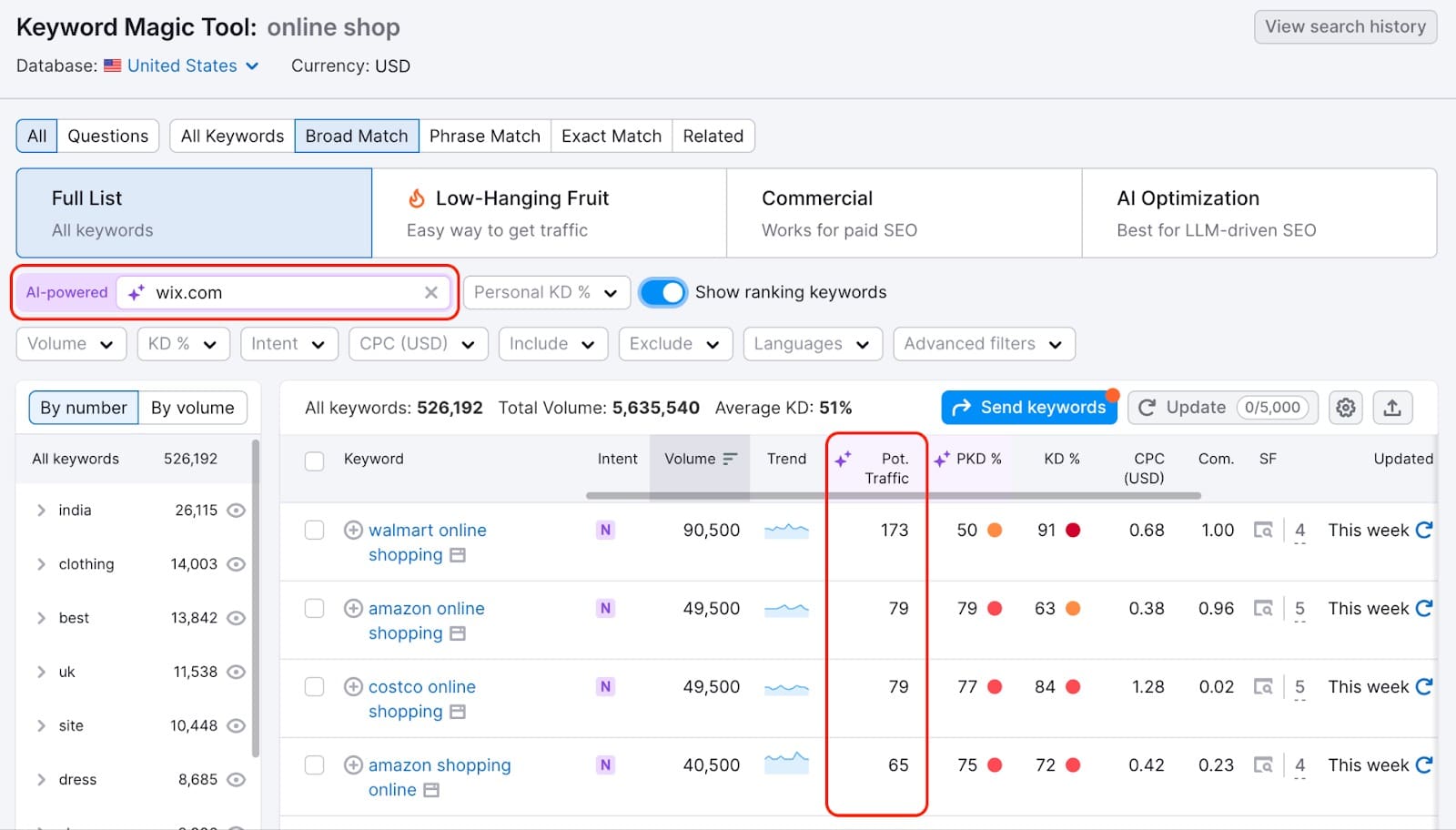 Figure 5: The Potential Traffic column helps estimate visits if your page ranks well.
1.7 Explore SERP Analysis
Next, you need to check the section called ‘SERP analysis’, which shows you the top-ranking results (these are your competitors) for your target keywords.
1. Review the SERP analysis
Learn all the content formats and SERP features (Featured snippets, Rich snippets, Images, Videos, People Also Ask boxes) that are currently ranking for your target keywords.
2. Gauge ranking potential
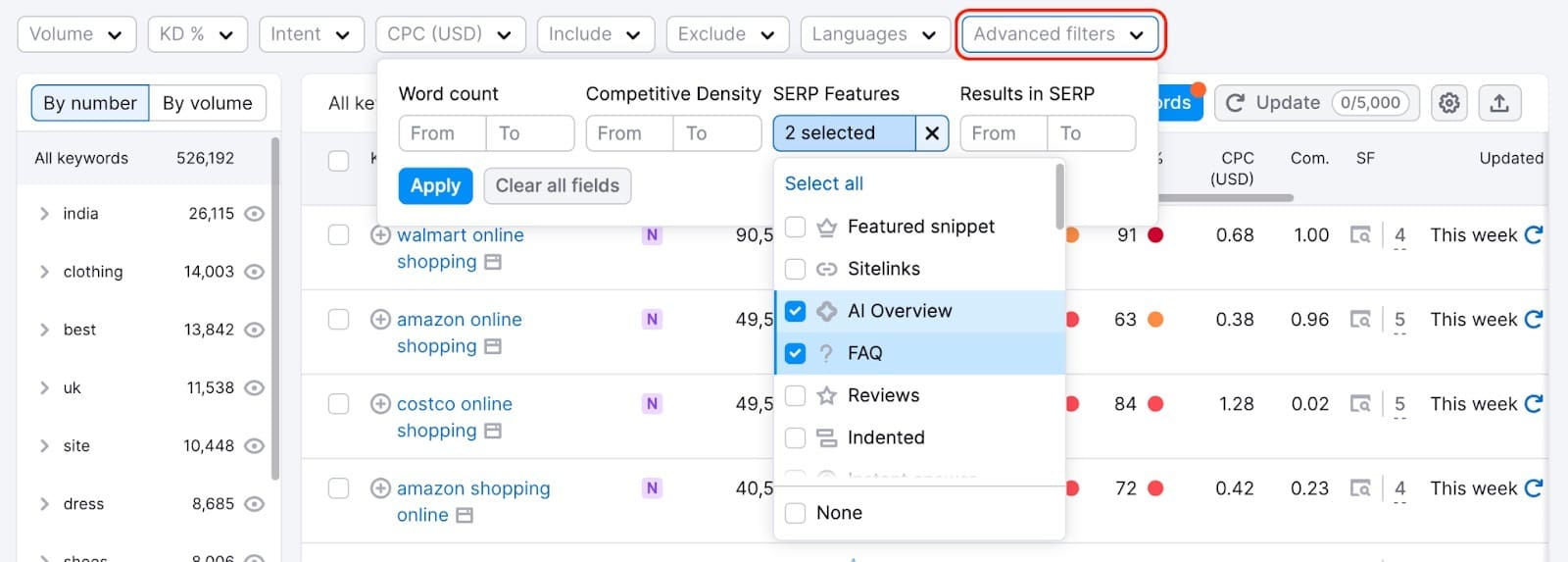 Figure 6: Advanced filters for SERP features such as AI overview and FAQ in Keyword Magic Tool.
Assess the top 10 results. So, if you want to rank for the keyword ‘womens accessories’, you’ll need to use a content format similar to the ones you see in this SERP analysis and also the content gaps that you find.
1.8 Analyse Location-Specific Data
You cannot use the AI-powered domain analysis (which analyzes your specific site) and specific location tracking simultaneously
1. Remove your URL
On the personalised search bar, remove your URL as this will allow you to see how keywords perform in a specific city or country.
2. Click on Select Location
From the dropdown, pick your desired location, which will be your target city or region.
3. Review the location-specific metrics.
You will find data related to the ‘local intent’ of your keyword, helping you cater to the needs of your target geographic area and also optimise your Google Business Profile.
Step 2. Identify Organic Terms Your Competitors Are Using
Identify the specific keywords through which your competitors’ websites are getting ‘non-paid’ traffic. This step helps you learn competitor strategies, check search demand, and find “keyword gaps” to target.
2.1 Check Organic Rankings
Learn who your competitors are and look at keywords that already work for your competitors.
1. Enter your domain.
Taking your domain into consideration, the tool will be able to show you your competitors’ data.
2. Navigate to the Competitors tab.
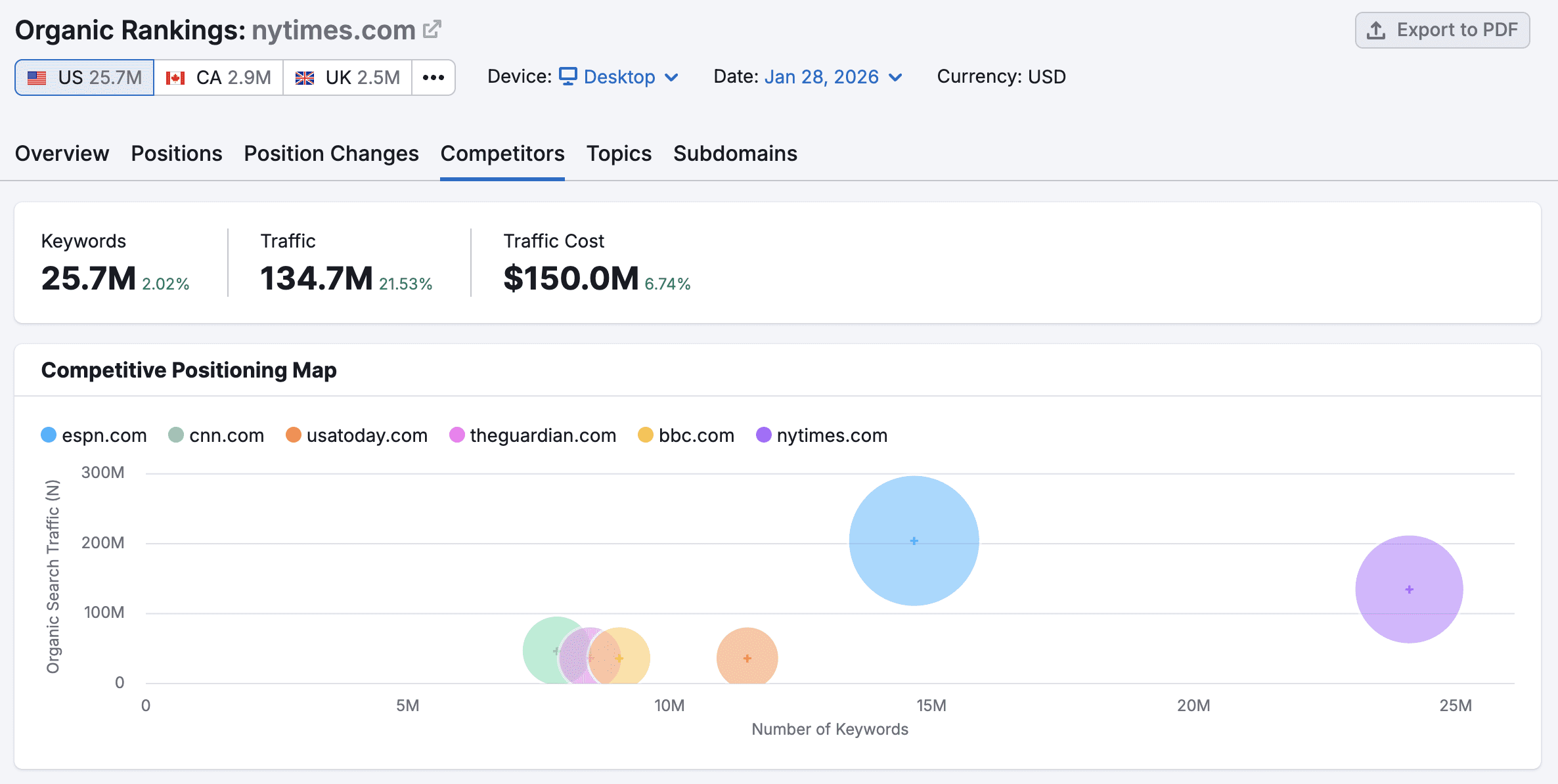 Figure 7: Organic Rankings Competitors map showing positioning of key rivals.
Click on the tab called “Competitors”, and you will see a mapped list of rivals, their common keywords, and estimated traffic.
3. Choose a competitor.
In the Organic Competitors section, pick one competitor’s domain and check details like their traffic, keyword strategy, and potential gaps.
2.2 Analyse Competitor Keywords
1. Click on the tab ‘Positions.’
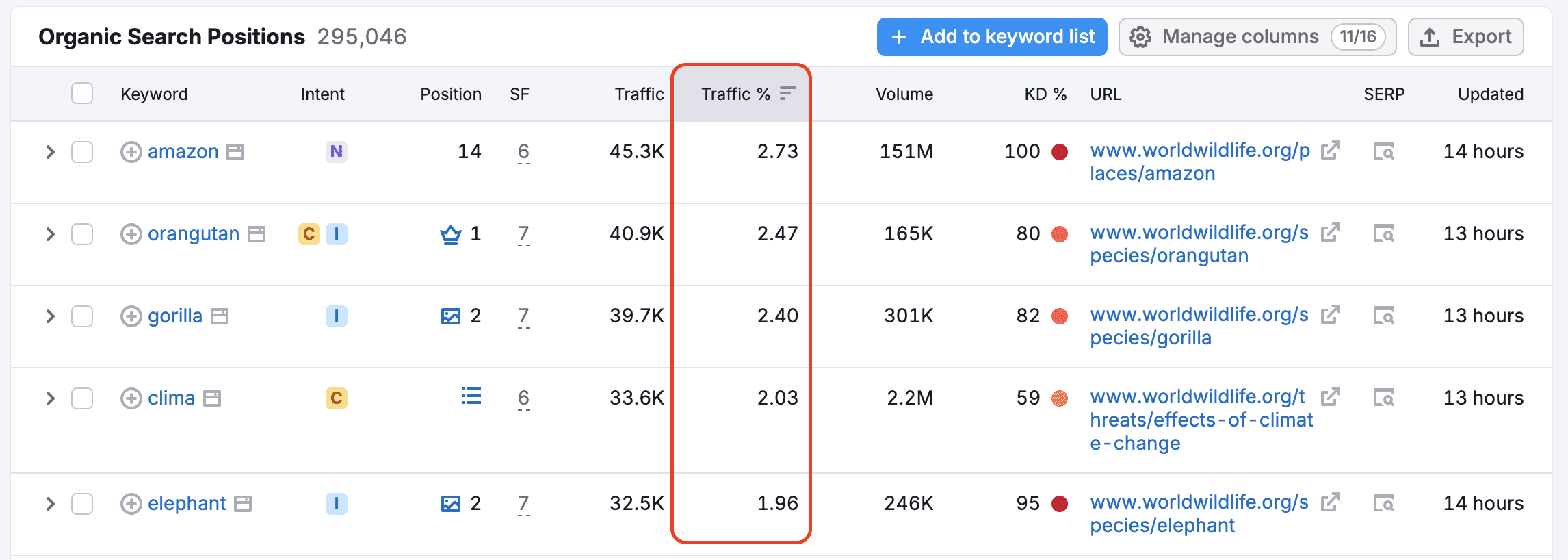 Figure 8: Competitor positions report highlighting traffic percentage and keyword metrics.
On the Positions tab, you will get a report of keywords that your competitor ranks for in the top 100 results.
2. Apply Filters
The dropdown will offer you Advanced filters in order to get only those keywords that meet very precise criteria. The aim here is to avoid branded searches and instead refine your keyword list.
2.3 Store Keywords
Now that you have identified keywords worth exploring, you can store them so you do not lose track of them later. Basically, you will be organising useful terms and return to them while building your content plan.
1. Select the keywords
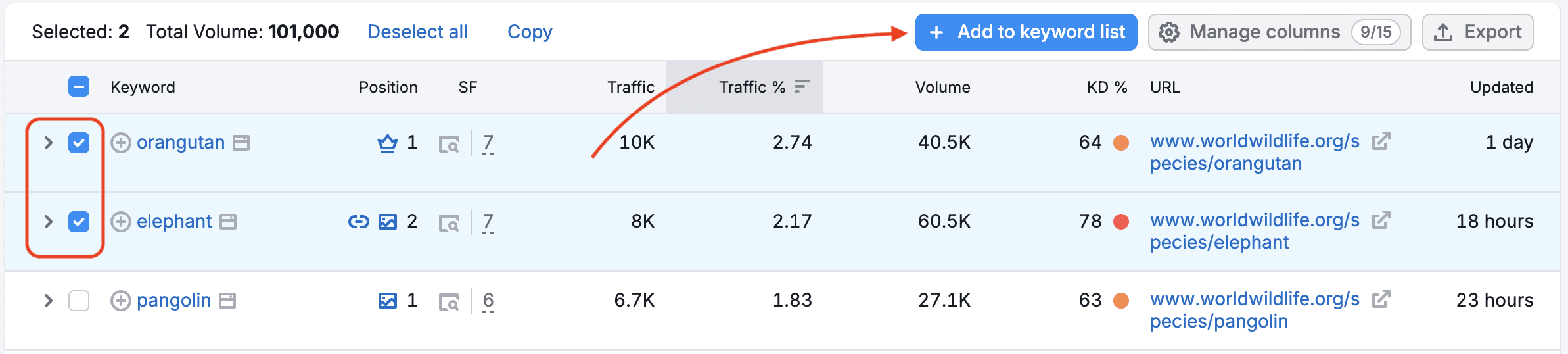 Figure 9: Selecting keywords and using the “Add to keyword list” button.
Check the boxes next to your desired keywords. Then click the blue “Add to keyword list.” Button. The terms you select will go into Semrush’s keyword storage area.
2. Add them to a list
You have three options:
Save the keywords to an existing list.
Create a new list in the Keyword Strategy Builder.
Export the keywords and store them in a spreadsheet.
2.4 Work with the Keyword Gap Tool
The main aim of the Keyword Gap tool is to allow you to compare your site with competitors and find out all the search terms they rank for, but you do not.
1. Add your domain
Write your domain first in the field provided, then enter up to four of your competitors’ domains to compare against.
2. Select Organic keywords
Select the “Organic keywords” option so the comparison focuses only on unpaid search results.
3. Review the report
Semrush will generate a comparison showing which keywords each site ranks for and where differences exist.
4. Find the Missing keywords
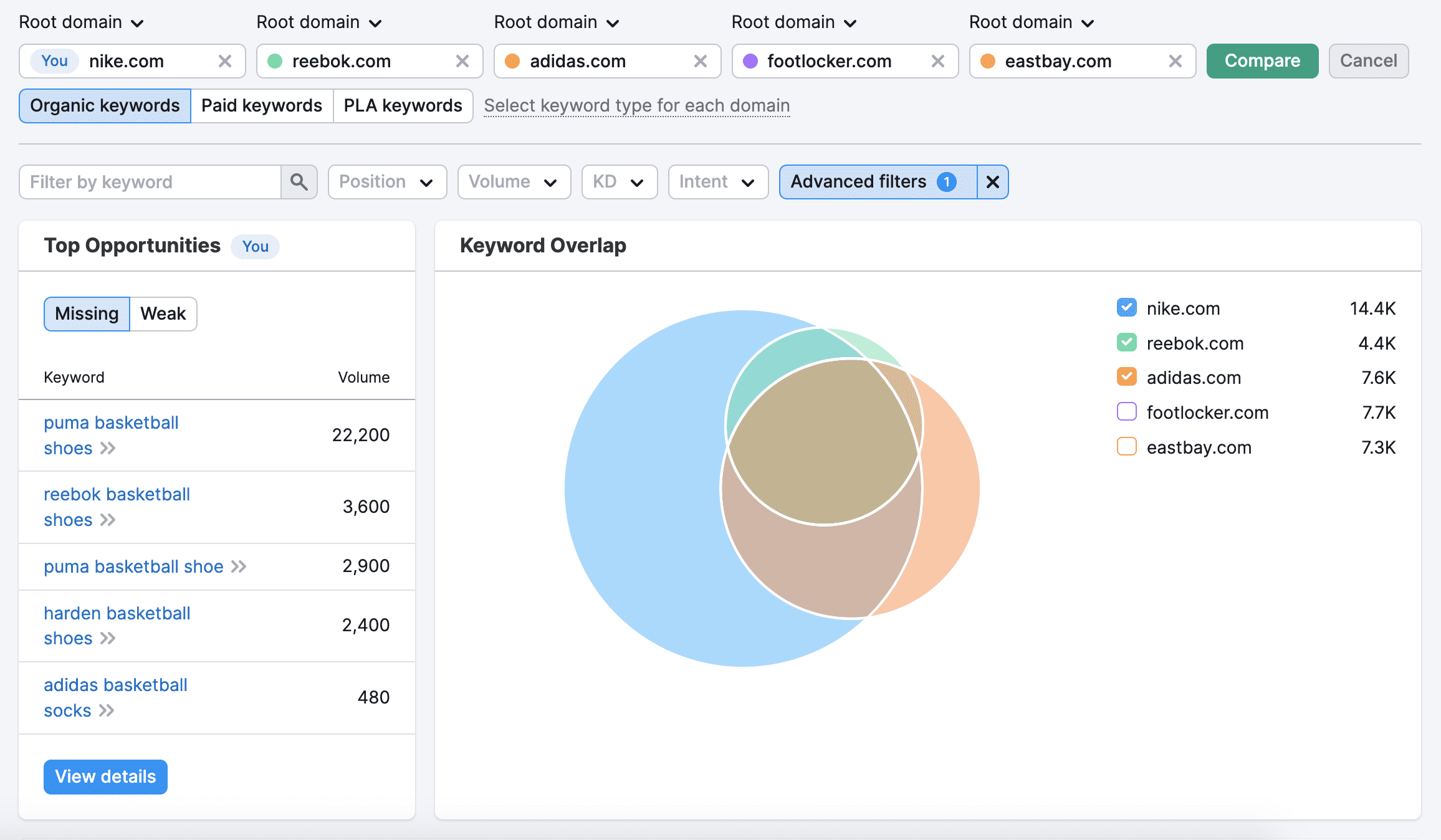 Figure 10: Keyword Gap tool showing Top Opportunities and Keyword Overlap among domains.
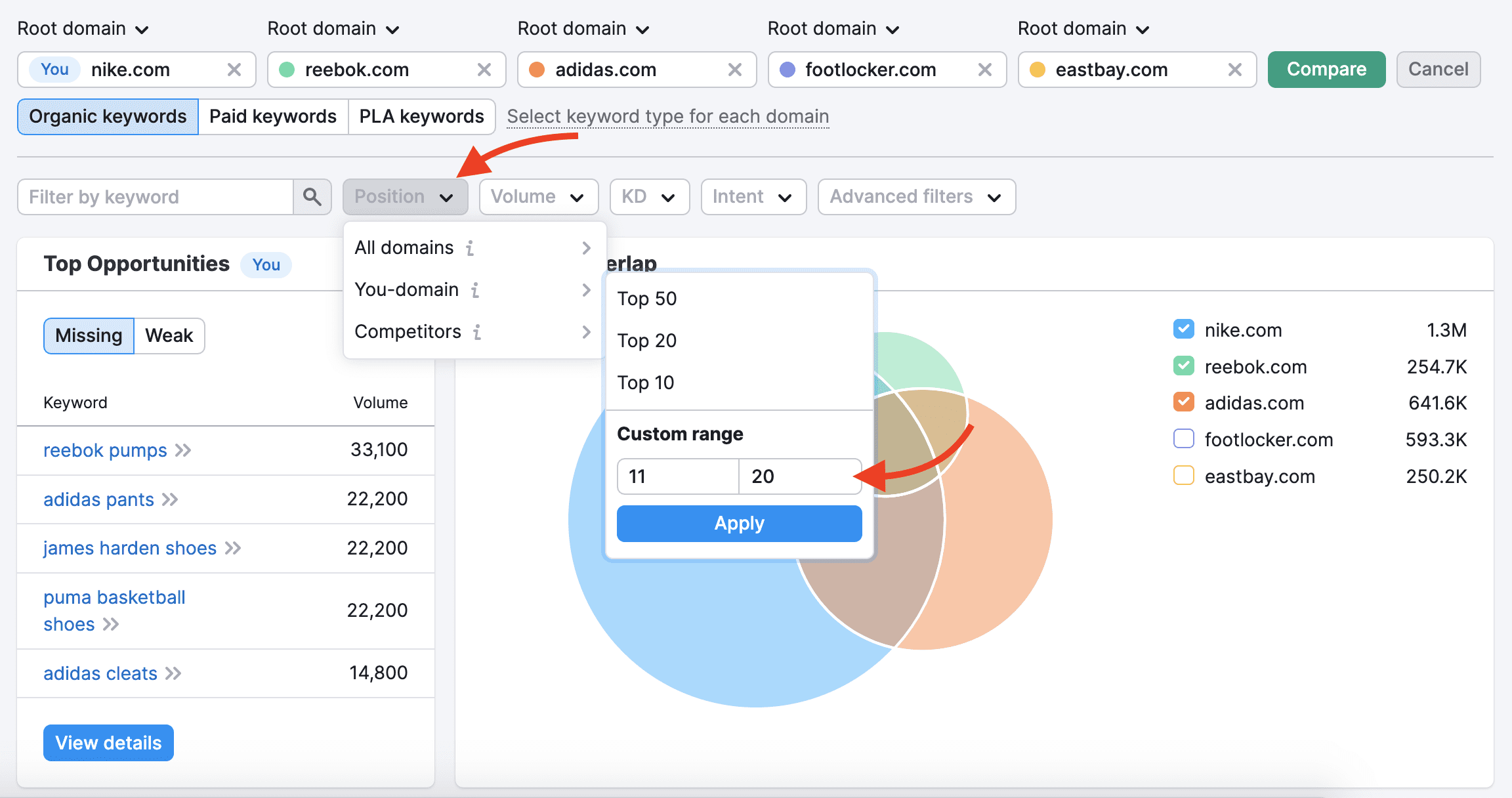 Figure 11: Using the Position filter to set custom ranking ranges in Keyword Gap.
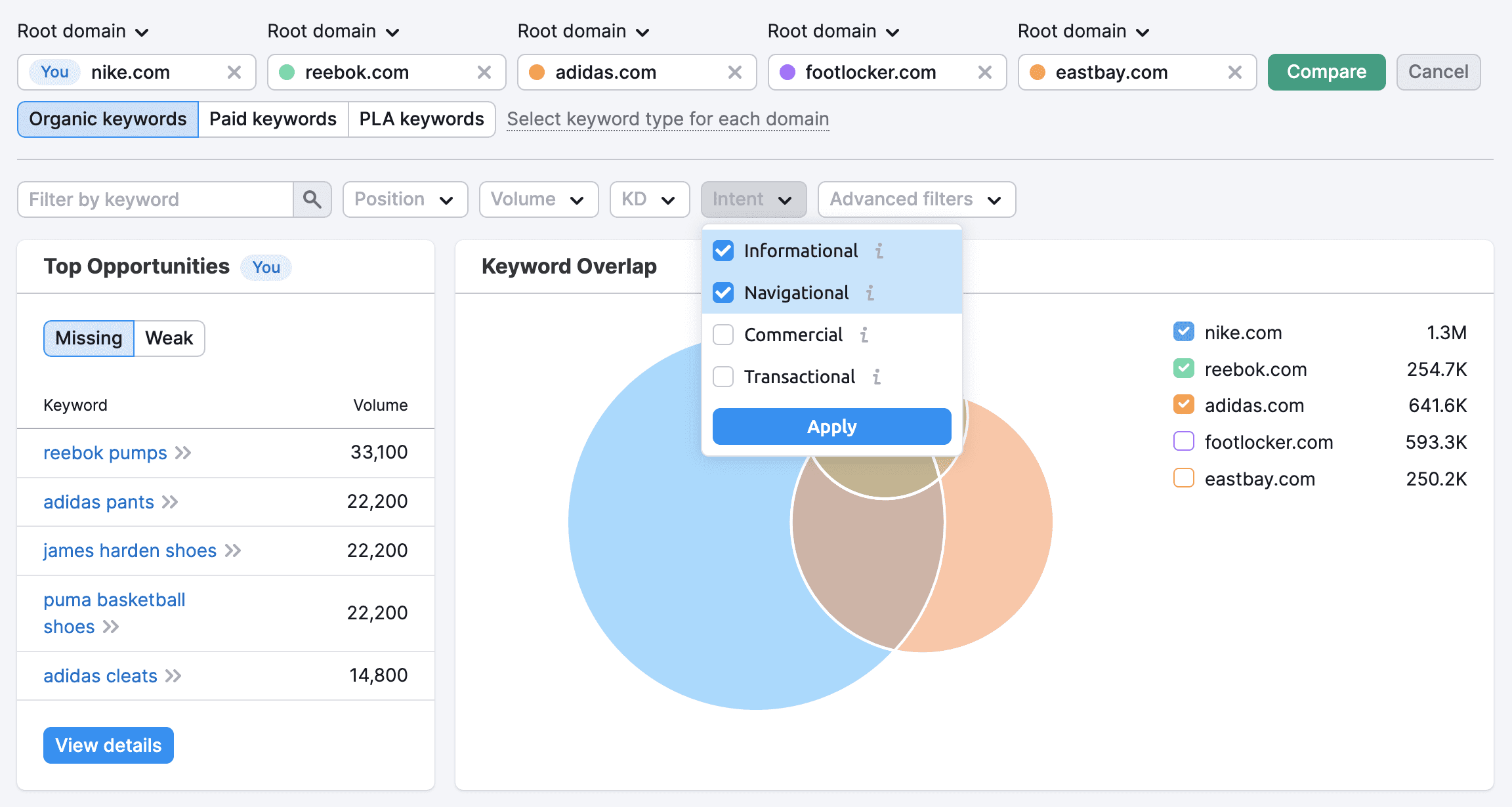 Figure 12: Filtering keywords by search intent (Informational, Navigational, Commercial, Transactional) in Keyword Gap.
Open the “Missing” section under Top Opportunities. These are keywords your competitors rank for, but your site currently does not.
Step 3. Build Topic Clusters for Your Organic Keywords
In order to organise content logically, you need to group related keywords into clusters. This way, rather than isolated articles, you build connected pages that strengthen topical relevance and improve ranking potential.
Two scenarios could be true here:
You have a previously created keyword list for the topic.
You want to create a new list on the topic.
3.1 Consolidate previously made keyword lists
If you have already saved keywords during earlier research, you can move them into Keyword Strategy Builder to organise them into a single aggregated list.
1. Collect keywords from different sources.
Go to the various places where you have saved your keyword research, like the Keyword Magic Tool, Organic Rankings, Keyword Gap, or even a spreadsheet.
2. Choose your preferred keywords.
Select the keywords you want to organise and click ‘Send keywords’ so they can be transferred into the Keyword Strategy Builder tool.
3. Send them to Keyword Strategy Builder.
Pick the option ‘Keyword Strategy Builder’ from the destination options and click ‘Apply’ to move the selected keywords into that workspace.
3.2 Create a new List
You may not have created any previous keyword lists; in that case, you need to make one on the Keyword Strategy Builder.
1. Create a new list.
Click ‘Create new empty list’ if you do not already have a list for this topic.
2. Give the list a clear name.
Naming the list helps you recognise the topic later when you manage multiple keyword groups.
3. Select the list.
Use your cursor to pick the list you want to work with so the keywords are added to the correct workspace.
4. Send the keywords.
Click Send keywords to move the selected terms into the list you created.
3.3 Make Keyword Clusters
Now your keywords are inside the list. So, the next step is grouping them so that related search terms can be converted to structured content topics.
1. Open the list.
Go to your list inside Keyword Strategy Builder.
2. Start clustering.
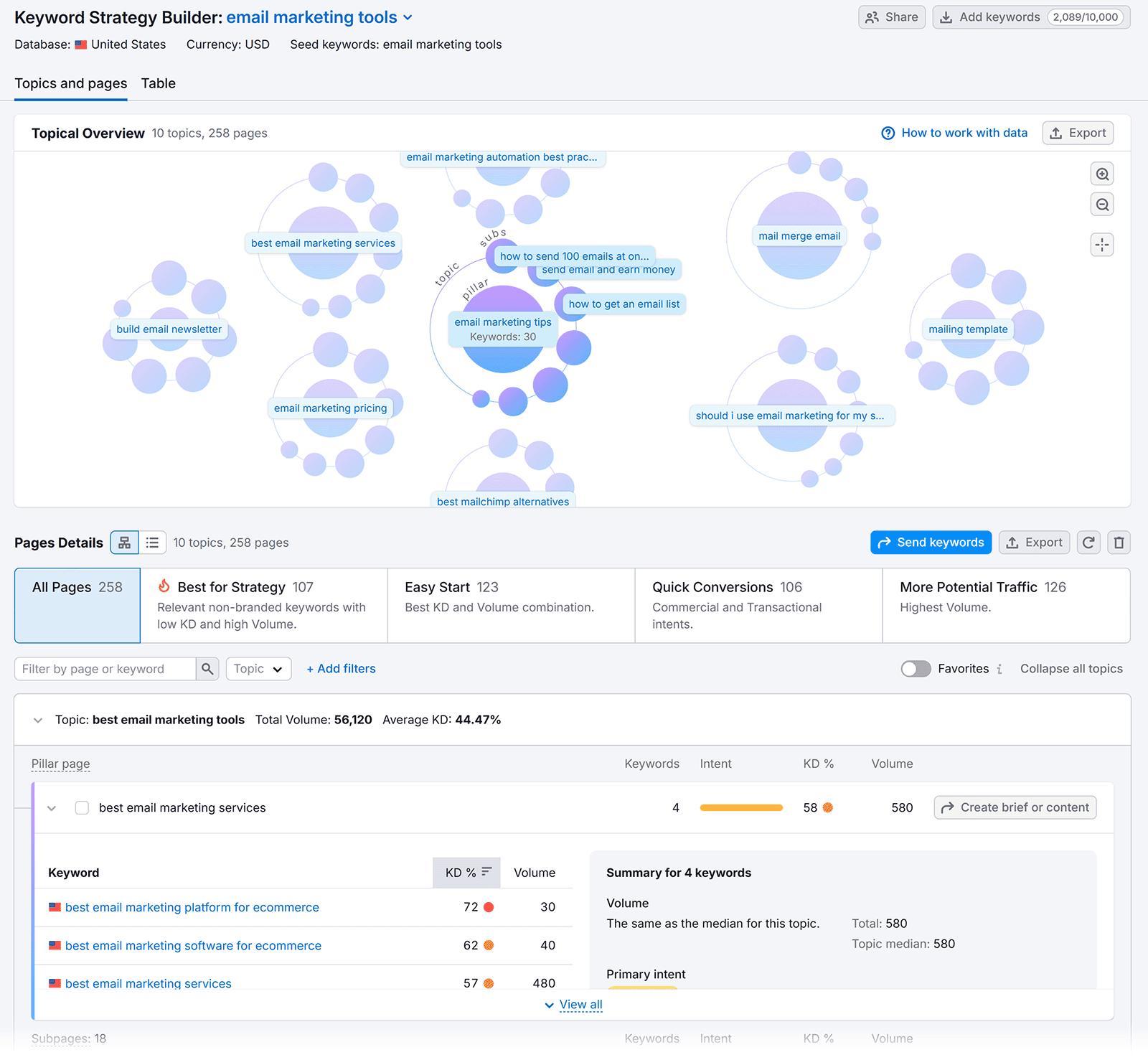 Figure 13: Keyword Strategy Builder Topical Overview mind map and page details for clustering keywords.
Click ‘Cluster this list’, and the tool will automatically group related keywords based on similarity and search intent.
3.4 Check Clusters
After clustering, you can examine how the tool organised your keywords. This helps you understand which topics deserve a main page and which belong as supporting content.
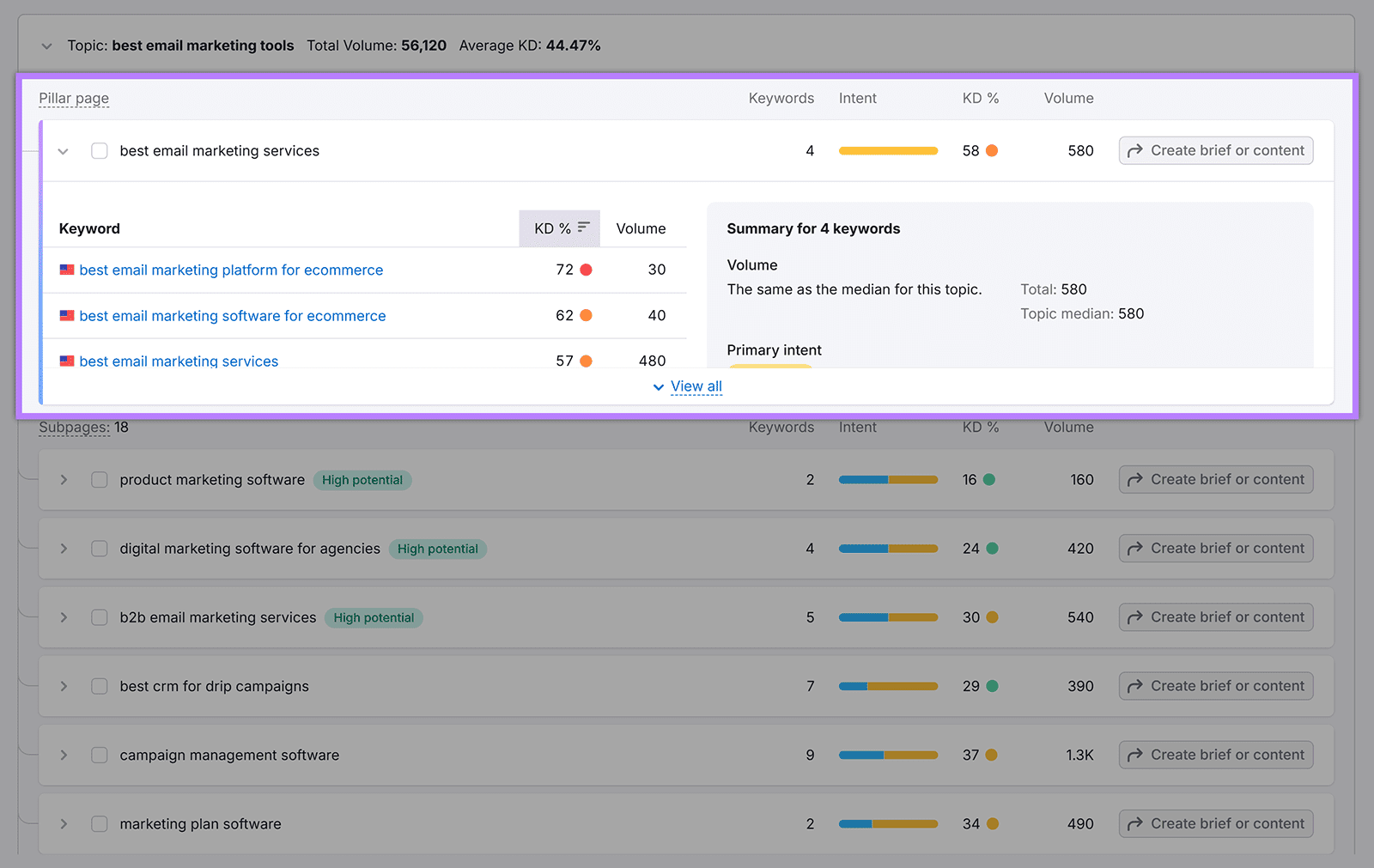 Figure 14: Pillar page section in Keyword Strategy Builder showing summary metrics.
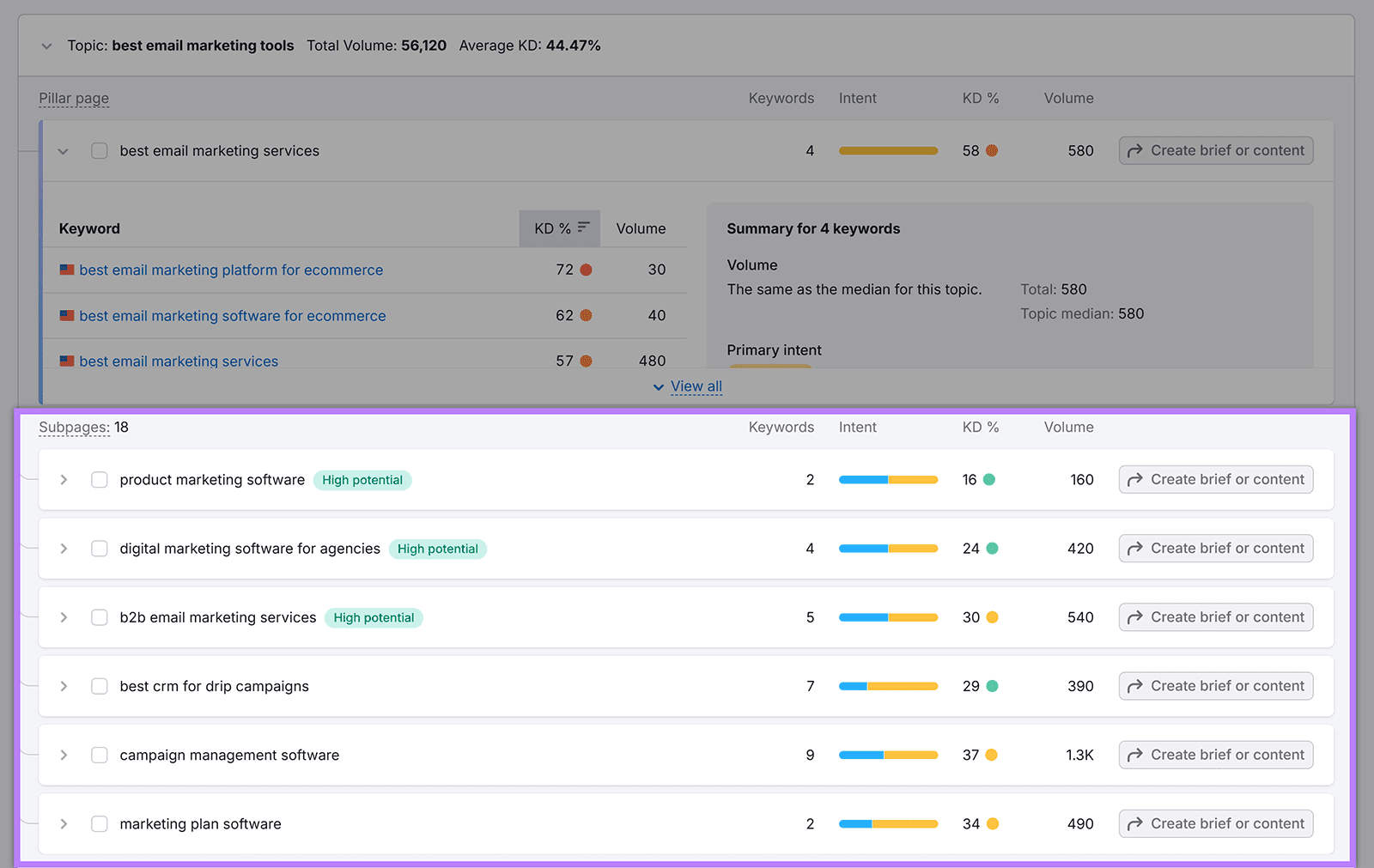 Figure 15: Subpages list in Keyword Strategy Builder demonstrating potential supporting topics.
1. Identify the pillar page.
The main theme of the cluster becomes the pillar page, which covers the topic broadly.
2. Recognise the cluster pages.
Each row in the table represents supporting pages that explore related subtopics.
3. Expand cluster details.
Click the arrow beside a row to review the keywords, metrics, search intent, and the pages currently ranking for those terms.
3.5 Begin from Scratch with Keyword Strategy Builder
You can also generate clusters without importing keywords first. This approach works well when you want the tool to suggest topic structures automatically.
1. Enter seed keywords.
Add a few broad keywords that describe your business or main topic.
2. Let the tool generate clusters.
Keyword Strategy Builder will analyse those terms and automatically create topic clusters around them.
3.6 Analyse and Filter Clusters
The generated clusters usually include many keyword groups, so you may want to refine them before deciding which topics to focus on.
1. Explore the clusters.
Look through the pillar topics and supporting keyword groups to see how the ideas are organised.
2. Apply filters (if needed).
Use manual or smart filters to find keywords that are easier to rank for or more likely to bring conversions.
3.7 Pick the Desired Topics
Once you review the clusters, the final step is deciding which topics you want to turn into content first.
1. Review the pillar and cluster pages.
Check both the main topic pages and the supporting subpages created by the tool.
2. Choose where to begin.
Select the topics that match your goals, search demand, and ranking potential so you can begin building content around them.
Step 4. Look for PPC Keywords
You need to do paid keyword research if you want to see what terms competitors are actively paying for. These keywords are helpful for your SEO, as they show you high-intent searches, where users are closest to making decisions or purchases.
4.1 Use Advertising Research
Advertising Research lets you examine which keywords competitors are bidding on. Enter a competitor’s domain to view their paid keywords, traffic estimates, and ad strategy.
1. Enter a competitor’s domain.
Type the competitor’s website into the Advertising Research search bar.
2. Check the Report
Semrush will generate a report showing their paid search activity and the keywords triggering their ads.
4.2 Go through the Paid Search Positions
The ‘Paid Search Positions’ section will let you to see which keywords currently trigger your competitor’s ads and how often those ads appear in search results.
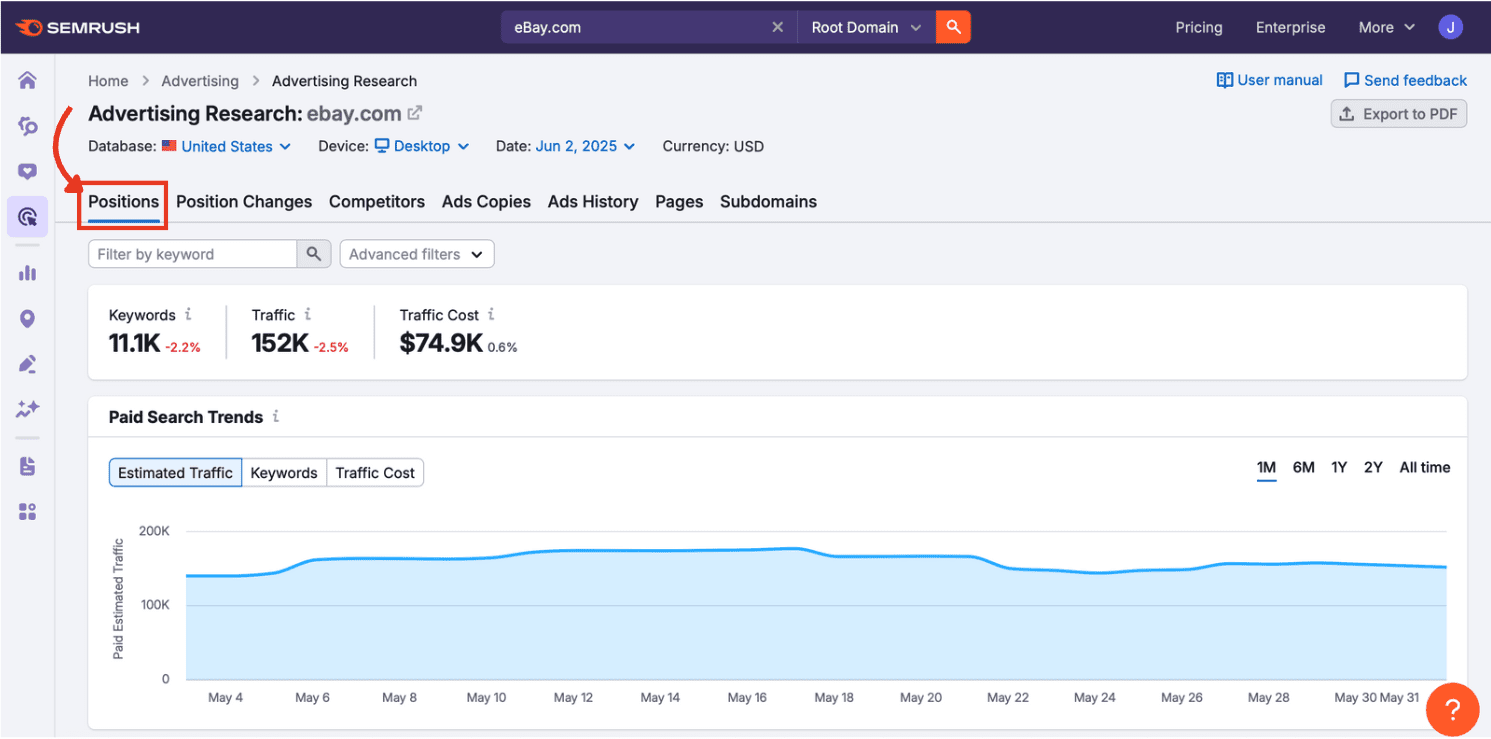 Figure 16: Advertising Research Positions tab displaying paid search trends and metrics.
1. Open the Positions tab.
Navigate to the Positions tab inside Advertising Research. In this section, you see the search terms that trigger your competitor’s ads to appear in Google’s paid results.
2. Review the Paid Search Positions table.
Scan the table to see the keywords, estimated traffic share, and ad positions. You can learn which terms your competitors consider valuable enough to advertise on.
4.3 Check Ads Copies
You can also check your competitors’ ad copies and study how they highlight their offers. It can also show you which messaging or landing page angles they use to attract clicks.
1. Open the Ads Copies tab.
Click the Ads Copies tab to view the text ads competitors are currently running or have run recently.
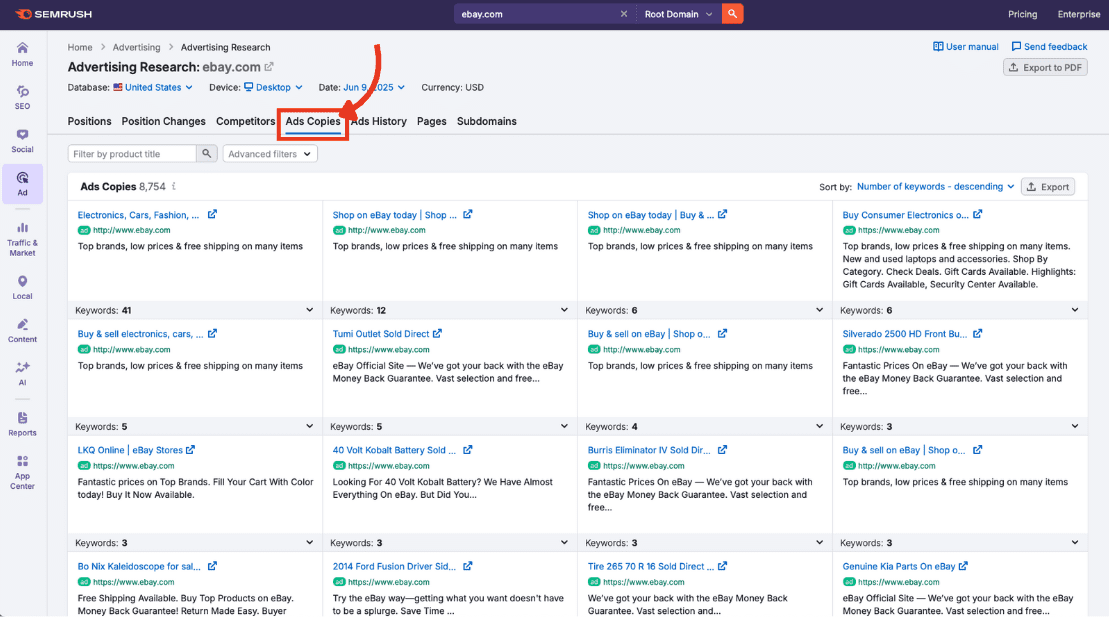 Figure 17: Ads Copies tab revealing text ads used by competitors in paid search.
2. Study ad copy and landing pages.
Read the ad headlines and descriptions carefully, then check the landing page links. This helps you understand the intent behind each keyword.
4.4 Pick out PPC Competitors
Paid search competitors are not always the same as organic ones. This section helps you identify businesses bidding on similar keywords.
1. Open the Competitors tab
Go to the ‘Competitors’ tab inside Advertising Research to see domains competing for the same paid keywords.
2. Identify other advertisers
Check the list of advertisers targeting similar terms. These domains often highlight additional keywords or campaigns worth analysing for your own strategy.
What To Do After Keyword Research?
Once the keyword research is complete, you will have a clearer picture of what people are searching for and which topics your website should focus on.
Those keywords can then guide your content plan, helping you create pages that answer user questions and match genuine search demand. Its primary goal is to help you build consistent visibility in search results pages.
If you would prefer support with the research and planning side of SEO, it may help to work with a team that handles this every day.
Webskitters works with businesses to identify practical keyword opportunities and turn them into content strategies that are easier to execute.
For the right guidance, connect with our SEO experts today.
Frequently Asked Questions
1. How accurate is SEMrush for keywords
Semrush estimates search volume and difficulty using large clickstream datasets. It gives reliable patterns for demand, competition, and keyword opportunities.
2. How to do keyword research step-by-step?
To do keyword research step-by-step
- Find seed keywords
- Expand keyword ideas
- Check search intent
- Review difficulty
- Group topic clusters
- Choose target keywords.
- Can you do keyword research with free Semrush?
Yes, the free Semrush account lets you run limited keyword searches and view basic metrics. Daily limits exist, but beginners can still start keyword research.
3. What is a good keyword difficulty score?
A good keyword difficulty depends on your site’s strength. New websites usually target lower scores, often under thirty, while stronger sites can compete for terms.
4. How many keywords should one page target?
Usually one main keyword and a few close variations. Search engines understand related phrases, so focusing on one topic helps the page stay clear to visitors.

 UI/UX Design
  Web Development
  Mobile App Development
  Internet Of Things
  Game Development
  Artificial Intelligence
  Digital Marketing
  Data Science Consulting